


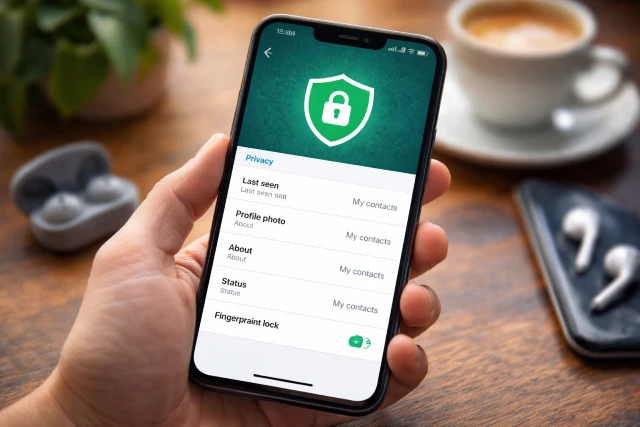
If you use Cocoo Whatsapp every day, you already know the awkward moments it can create. Someone messages you, you open the app for one quick thing, and suddenly they can see you were online. Or you post a Status meant for close friends and later realize a random contact viewed it. And then there is the big one: someone borrows your phone for a minute and your private chats are right there.
- What “privacy settings” really control in Cocoo Whatsapp
- Quick privacy checklist (if you are in a hurry)
- Cocoo Whatsapp Status privacy: choose who can view your Status
- Cocoo Whatsapp Last Seen and Online: stop broadcasting your availability
- Cocoo Whatsapp Locks: app lock vs chat lock (and when you should use both)
- A simple table: best privacy settings for Status, Last Seen, and Locks
- Extra Cocoo Whatsapp privacy settings worth checking (quick wins)
- Security reality check: privacy settings do not stop scams
- Account-level protection: the “locks” that matter even more
- Cocoo Whatsapp Privacy Settings FAQ
- Conclusion: make Cocoo Whatsapp feel calmer and safer
The good news is that Cocoo Whatsapp style apps usually offer a familiar set of privacy controls, and with the right settings you can take back control of three things that matter most: your Status audience, your Last Seen and Online visibility, and your locks (app lock and chat lock).
This guide walks you through the settings in a simple, real-life way, with practical examples and a few security tips people often ignore. Because privacy is not just “hide everything.” It is about choosing what you share, with whom, and when.
What “privacy settings” really control in Cocoo Whatsapp
Before we jump into the steps, it helps to understand what you are actually controlling. In Cocoo Whatsapp, privacy settings usually affect:
- Presence signals: Last Seen, Online, sometimes “typing” behavior
- Content sharing: Status audience, profile photo, About info
- Message signals: read receipts (blue ticks), message reactions visibility
- Access controls: app lock, locked chats, hidden notifications
- Account safety: verification tools like passkeys or two-step verification
Why does this matter? Because most privacy problems are not “hacking.” They are everyday exposure. Verizon’s 2024 DBIR highlights how often the human element is involved in security incidents and breaches, meaning simple mistakes and social engineering still do massive damage.
So the goal is to reduce the easy ways people can learn your habits, access your chats, or trick you.
Quick privacy checklist (if you are in a hurry)
If you want the fastest “make me more private” setup in Cocoo Whatsapp, start here:
- Set Last Seen to Nobody or My Contacts
- Set Online visibility to Same as Last Seen
- Set Status audience to My Contacts Except… (hide from specific people)
- Turn App Lock on (fingerprint or Face ID)
- Turn Chat Lock on for sensitive conversations
- Hide message previews in notifications
- Enable stronger account protection like passkeys or two-step verification where available
Now let’s do it properly, step by step.
Cocoo Whatsapp Status privacy: choose who can view your Status
Status is designed to feel temporary, but it is still a broadcast. People screenshot. People forward. People misunderstand. That is why your Status audience matters.
Where to find Status privacy settings
In most WhatsApp-style layouts used by Cocoo Whatsapp, you will find it in one of these paths:
- Settings → Privacy → Status
- Or inside Status screen → Privacy or a menu option
Once you are there, you usually see options like:
- My Contacts
- My Contacts Except…
- Only Share With…
What each Status option actually means
My Contacts
Every saved contact can see your Status (unless you blocked them). This is fine if your contact list is small and curated. It is risky if you save numbers casually (delivery riders, sellers, old clients).
My Contacts Except…
This is the “I want to post, but not to everyone” option. You pick the people you want to exclude. Many users choose this when they have family or coworkers in their contact list.
Only Share With…
This is the tightest control. You pick exactly who can see your Status. If you use Status for close friends content, this is usually the best choice.
A real scenario (why “My Contacts Except” saves you)
Imagine you are job-hunting quietly. You post a Status about an interview or a new skill you learned. Your coworker sees it and asks questions at work. Awkward, right?
With Cocoo Whatsapp Status privacy set to Only Share With, you can keep that post inside a trusted circle. It is not about hiding your life. It is about controlling the audience.
Status privacy tips people miss
- Review your excluded list every month. People add contacts constantly.
- If you post often, keep a small “Status circle.” Use Only Share With and update it occasionally.
- If your app shows “viewers,” remember: some settings (like read receipts) can affect what you see about views in certain WhatsApp variants.
Cocoo Whatsapp Last Seen and Online: stop broadcasting your availability
This is where most people feel pressured. Last Seen and Online are tiny details, but they tell a story: when you wake up, when you sleep, when you ignore someone, and when you are free.
WhatsApp introduced stronger “online visibility” controls that let you match your Online setting to Last Seen, which is a simple way to reduce presence pressure.
Where to change Last Seen and Online
Common path in Cocoo Whatsapp:
- Settings → Privacy → Last Seen and Online
You usually get two controls:
- Who can see my Last Seen
- Who can see when I’m Online
Best Last Seen and Online combinations (practical, not extreme)
Here are the combos that work well in real life.
Option A: Balanced privacy (most people should use this)
- Last Seen: My Contacts
- Online: Same as Last Seen
This keeps strangers and unknown numbers from reading your schedule, while your actual contacts still get normal visibility.
Option B: High privacy (if you hate pressure)
- Last Seen: Nobody
- Online: Same as Last Seen
This is the “I do not want this app to control my time” setup.
Option C: Selective privacy (best if you have mixed circles)
- Last Seen: My Contacts Except…
- Online: Same as Last Seen
Great if you want most friends to see your Last Seen, but you have certain people who use it to guilt-trip you.
Important tradeoff (people forget this part)
When you limit your Last Seen and Online, you may also lose the ability to see other people’s Last Seen in some cases, depending on how the app mirrors WhatsApp behavior. That is not a punishment. It is a fairness rule that prevents one-way spying.
If someone still “knows” you are online
Even if your Cocoo Whatsapp Online setting is private, people can still infer you are active if:
- You reply instantly (obvious, but true)
- You post a Status and it updates “just now”
- You appear in a group chat and react quickly
- Your typing indicator appears (some variants have limited control here)
If you want calmer messaging, it helps to slow your response rhythm a little. Privacy is partly settings, partly habit.
Cocoo Whatsapp Locks: app lock vs chat lock (and when you should use both)
Locks are your “second door.” Even if someone gets your phone for a minute, they should not get your conversations.
There are usually two lock types:
- App Lock: locks the entire app behind fingerprint, Face ID, or passcode
- Chat Lock: locks specific chats inside the app and moves them to a protected folder
WhatsApp’s Chat Lock was designed to add an extra layer of privacy for sensitive conversations, and it can also hide chat details in notifications.
How to enable App Lock in Cocoo Whatsapp
Typical path:
- Settings → Privacy → App Lock
- Turn on fingerprint or Face ID requirement
- Choose timing: immediate lock, after 1 minute, after 30 minutes, etc.
This is a simple upgrade, and it is especially helpful if you:
- Have kids who play games on your phone
- Hand your phone to friends for photos
- Work in a shared environment
- Travel a lot
App lock instructions and behavior are consistent across many WhatsApp setups on Android and iPhone.
How to enable Chat Lock (lock a single chat)
Typical method:
- Open the chat
- Tap contact or group name at the top
- Choose Chat Lock
- Confirm with fingerprint, Face ID, or device passcode
Once locked, it usually goes into a Locked Chats folder that needs authentication to open.
When to use App Lock, Chat Lock, or both
Use App Lock if:
You mainly want protection when someone picks up your phone casually.
Use Chat Lock if:
You want extra privacy even when you are already inside the app (for example, you show someone a chat, and you do not want them scrolling into something else).
Use both if:
Your phone is shared sometimes, and you have at least one chat you would never want exposed.
Lock notifications: the overlooked part
Chat lock is powerful because it can reduce what shows up on the lock screen. In WhatsApp’s design, locking a chat can hide chat details in notifications, which helps prevent “notification leaks.”
To go further, also check your phone’s notification settings:
- Hide sensitive content on the lock screen
- Disable message previews
- Keep WhatsApp-style notifications minimal
This one tweak prevents a lot of accidental exposure.
A simple table: best privacy settings for Status, Last Seen, and Locks
Here is a practical setup you can copy and adjust.
| Privacy Area | Recommended Setting | Why it helps |
|---|---|---|
| Status audience | Only Share With… | Keeps Status inside a trusted circle |
| Last Seen | My Contacts or Nobody | Stops strangers and random contacts tracking you |
| Online | Same as Last Seen | Prevents “why are you online but not replying?” drama |
| App Lock | ON (biometric) | Blocks casual snooping |
| Chat Lock | ON for sensitive chats | Adds a second layer for specific conversations |
| Notification previews | OFF | Stops lock-screen leaks |
| Account protection | Passkeys or two-step verification | Reduces takeover risk |
Extra Cocoo Whatsapp privacy settings worth checking (quick wins)
Even though your focus is Status, Last Seen, and locks, a few extra settings make a big difference:
Profile photo and About visibility
Set these to My Contacts or Nobody if you do not want unknown numbers to identify you quickly.
Groups: who can add you
If Cocoo Whatsapp includes a “Groups” privacy control, set it to limit who can add you. This reduces spam group invites.
Silence unknown callers
WhatsApp has promoted privacy controls like silencing unknown callers as part of broader safety improvements.
If your app includes it, turn it on to reduce scam calls and harassment.
Read receipts (blue ticks)
Turning off read receipts can reduce pressure and prevent people from tracking your behavior. Just remember it can affect what you see too.
Security reality check: privacy settings do not stop scams
Privacy settings help reduce exposure, but scams often bypass privacy by targeting your trust.
You have probably seen messages like:
- “Hi, I changed my number, send money”
- “Your account will be banned, click here”
- “You won a prize, verify details”
Phishing and social engineering are still a huge problem. Verizon’s DBIR keeps pointing to human involvement in incidents, and that trend is not going away.
On top of that, security reporting has shown how large-scale malicious and scam activity can still spread through mobile ecosystems.
So alongside Cocoo Whatsapp privacy settings, do these two things:
- Never trust urgency. Urgent messages are often traps.
- Verify through a second channel. Call the person, or message their old number.
Account-level protection: the “locks” that matter even more
App locks and chat locks protect your phone. But if someone takes over your account, they can do damage even without your phone.
If Cocoo Whatsapp offers similar account security features, use them.
Passkeys and encrypted backups
Meta has discussed passkey-encrypted chat backups as part of making backup encryption easier, using your fingerprint, face, or screen lock code.
If your setup includes encrypted backups, turn them on. Backups are often the weakest point in a secure messaging chain.
Two-step verification
Many security experts recommend enabling two-step verification for WhatsApp accounts to reduce hijacking and SIM-swap style takeovers.
If Cocoo Whatsapp includes a PIN-based verification feature, enable it and add an email recovery option if available.
Cocoo Whatsapp Privacy Settings FAQ
Can I hide my Last Seen but still show Online in Cocoo Whatsapp?
In most WhatsApp-style privacy systems, you can choose separate visibility for Last Seen and Online, but the best privacy move is setting Online to Same as Last Seen so your availability is consistent and harder to track.
If I lock a chat, will notifications still show the message content?
Chat lock is designed to reduce exposure by hiding chat details in notifications. Exact behavior can vary by version, but the official Chat Lock concept includes hiding conversation details in notifications.
What is better: App Lock or Chat Lock?
They solve different problems. App lock protects the whole app from casual access. Chat lock protects specific chats even after the app is open. Most people use app lock daily and chat lock for a few sensitive conversations.
Does hiding Status from someone unfriend or block them?
No. Status privacy controls simply limit visibility. The person stays in your contacts. They just do not see that Status.
Why can some people still see my Status when I changed privacy?
Usually it is because:
- You changed Status privacy after posting
- You have multiple accounts or devices
- You accidentally chose My Contacts instead of Only Share With
Double-check the Status privacy screen before your next post.
Conclusion: make Cocoo Whatsapp feel calmer and safer
Privacy is not about disappearing. It is about feeling in control.
When you configure Cocoo Whatsapp so your Status goes only to the right people, your Last Seen is not a public schedule, and your private chats stay locked, the whole app feels lighter. You reply when you want to reply. You share when you want to share. And you stop worrying about who is silently watching your activity.
Start with the three core controls: Status audience, Last Seen and Online visibility, and locks. Then strengthen the rest with safer notifications and account protection. Think of it like encryption basics: privacy works best in layers, not in a single switch.