


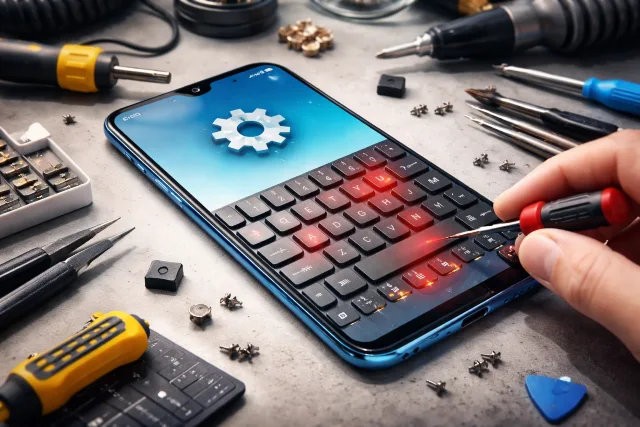
When your phone’s keyboard suddenly stops responding, it’s not just annoying. It blocks everything. Messaging, passwords, notes, search, even basic navigation. If your Vivo S1 Keyboard isn’t working, don’t panic or jump straight to a factory reset. In most cases, the fix is simple, and you can get typing again in minutes.
- What “Vivo S1 Keyboard Not Working” usually looks like
- Quick 2-minute fixes first (do these before anything else)
- Confirm which keyboard you’re actually using
- Fix 1: Force stop the keyboard app and clear cache (safe and fast)
- Fix 2: Update the keyboard app (and Google Play services if needed)
- Fix 3: Reset keyboard settings (without wiping your phone)
- Fix 4: Turn off conflicting accessibility or overlay apps
- Fix 5: Boot into Safe Mode to catch the real culprit
- Fix 6: Reset app preferences (the sneaky fix that restores disabled system components)
- Fix 7: Re-add the keyboard (remove, then enable it again)
- Fix 8: Fix “keyboard not showing” inside a specific app (WhatsApp, Chrome, etc.)
- Fix 9: When the keyboard lags, freezes, or types late
- A simple troubleshooting table (so you don’t guess)
- Common questions (answered like a real person would ask)
- What to avoid (these mistakes make keyboard issues worse)
- When it’s time to get official help
- Conclusion
This guide walks you through real-world troubleshooting, from quick wins to deeper fixes. I’ll also explain why each step works, so you’re not just tapping random buttons hoping for luck.
What “Vivo S1 Keyboard Not Working” usually looks like
Before we fix it, let’s get clear on the symptoms people usually mean when they say the Vivo S1 Keyboard isn’t working:
- Keyboard doesn’t appear when you tap a text field
- Keyboard appears, but keys don’t register
- Keyboard keeps crashing or closing
- It’s extremely laggy or freezes mid-typing
- Auto-correct or suggestions stop working
- The wrong keyboard shows up (or none at all) in certain apps
The good news is that all of these typically fall into a few root causes: a temporary glitch, app-level conflict, corrupted cache, storage pressure, or a settings change.
Quick 2-minute fixes first (do these before anything else)
These are the “most likely to work” steps with the least effort.
1) Restart your phone
Yes, the boring advice is still the best first move. A restart clears stuck background processes that can interfere with keyboard services. Google’s own guidance for keyboard issues starts with rebooting and checking updates.
What to do:
- Press and hold Power button
- Tap Restart (or Power off, then turn it back on)
Test the Vivo S1 Keyboard immediately after reboot.
2) Switch to another app and back
Sometimes a single app glitches, not the keyboard itself.
Try this:
- Open Notes or Messages
- Tap a text box and check if the keyboard appears
- Go back to the original app and try again
If it works everywhere except one app, skip ahead to the “app-specific fixes” section.
3) Check if your phone is low on storage
Low storage can cause apps and system components to misbehave, including keyboards. Android’s help pages regularly recommend clearing space when the device gets unstable.
Quick check:
- Settings > Storage
- If storage is nearly full, free up a little space (videos, downloads, unused apps), then test again.
Confirm which keyboard you’re actually using
Vivo phones may use a default keyboard or a third-party option like Gboard. Knowing which one is active helps you troubleshoot correctly.
Check it here:
- Settings > System (or Additional settings)
- Languages & input > On-screen keyboard (or Keyboard & input method)
- Default keyboard
If you use Gboard, note that it’s widely used and frequently updated (the Play Store listing shows 10B+ downloads and ongoing updates), so basic fixes like updating and clearing cache are well-supported.
Fix 1: Force stop the keyboard app and clear cache (safe and fast)
If your Vivo S1 Keyboard is opening but acting weird, this is often the best “real” fix.
Google specifically recommends clearing the Gboard app cache when it misbehaves.
And in general, Android apps use cache for temporary data, which can get corrupted and cause glitches.
Steps (works for most keyboards)
- Settings > Apps > App management (or Apps)
- Find your keyboard app (Gboard, Vivo keyboard, or whatever is default)
- Tap Force stop
- Tap Storage
- Tap Clear cache
- Open Messages/Notes and test typing
What clearing cache does (in plain language):
It removes temporary files, not your personal data. Your saved settings may remain, but the keyboard gets a “fresh start” with clean temporary storage.
Fix 2: Update the keyboard app (and Google Play services if needed)
Keyboard issues sometimes show up after an app update, or because you’re missing one.
Update the keyboard app
- Open Google Play Store
- Search your keyboard app
- Tap Update (if available)
Google recommends keeping Gboard updated because updates include fixes and performance improvements.
Also check Google Play services (important for many Android components)
If your keyboard is Gboard or depends on Google services, Play services being outdated can cause random app behavior.
Google’s own help explains how to keep Google Play services updated and troubleshoot it.
Fix 3: Reset keyboard settings (without wiping your phone)
If the keyboard is opening but behaving wrong, like:
- wrong language
- missing suggestions
- odd layout
- auto-correct going crazy
Then a settings reset is often faster than troubleshooting each feature.
Try this:
- Settings > System > Languages & input
- On-screen keyboard > your keyboard
- Look for Reset settings (varies by keyboard)
If you don’t see reset inside the keyboard, you can still “soft reset” the keyboard by clearing cache (above) and toggling key features off/on.
Fix 4: Turn off conflicting accessibility or overlay apps
Some apps can sit “over” your screen, filter taps, or modify input behavior. Examples:
- screen recorders
- chat heads / floating widgets
- auto-clickers
- clipboard managers from unknown sources
- aggressive “cleaner” apps
Test this quickly:
- Disable floating bubbles/widgets
- Pause screen recorder apps
- Temporarily disable any recently installed utility apps
Then test the Vivo S1 Keyboard again.
Fix 5: Boot into Safe Mode to catch the real culprit
Safe Mode is one of the most useful tools when a keyboard problem keeps returning. It disables third-party apps so you can see if something you installed is causing the keyboard crash or input lag.
Reliable guides explain Safe Mode as a diagnostic mode that helps identify troublesome apps by turning off third-party software.
How to use Safe Mode (general method)
- Press and hold the Power button
- Press and hold “Power off”
- Confirm “Reboot to Safe Mode”
- Your phone restarts with “Safe mode” shown on-screen
(Exact steps can differ slightly by model, but the above is common across Android.)
What to look for
- If the Vivo S1 Keyboard works fine in Safe Mode, a third-party app is almost certainly the cause.
- Think about what you installed recently (especially “phone booster” apps).
What to do next:
- Uninstall the most recent apps one by one
- Restart normally after each uninstall
- Test the keyboard after each removal
Fix 6: Reset app preferences (the sneaky fix that restores disabled system components)
Sometimes the keyboard breaks because a related system app was disabled, or permissions were altered. Resetting app preferences can restore defaults without deleting your personal files.
This approach is commonly used when essential apps were disabled by mistake and input stops working.
Steps (names may vary slightly)
- Settings > Apps
- Tap the menu (three dots)
- Tap Reset app preferences
- Confirm
What this changes:
- Re-enables disabled apps
- Restores default app restrictions/permissions
- Resets default app choices
It does not delete your photos, messages, or documents.
Fix 7: Re-add the keyboard (remove, then enable it again)
If the Vivo S1 Keyboard isn’t showing at all, sometimes the input method got toggled off.
Do this:
- Settings > Languages & input
- On-screen keyboard
- Toggle the keyboard off, then back on
- Set it as Default keyboard again
- Test in Messages/Notes
Fix 8: Fix “keyboard not showing” inside a specific app (WhatsApp, Chrome, etc.)
If the keyboard works in most places but not one specific app, it’s probably that app.
Try these app-specific fixes
- Force stop the app
- Clear app cache (not storage, at first)
- Update the app
- Disable and re-enable permissions (especially if it’s a messaging app)
Also check if the app is using a built-in search bar or webview that’s crashing.
Quick sanity test:
If typing works in Notes but not in your banking app, that app might be blocking overlays or detecting a security feature. In that case, disable screen overlays and try again.
Fix 9: When the keyboard lags, freezes, or types late
Laggy keyboard problems usually come from one of these:
- phone is overheating
- memory pressure (too many apps open)
- storage nearly full
- keyboard cache corruption
- buggy keyboard update
Try this order
- Restart the phone
- Free up storage space
- Clear keyboard cache (again, it’s safe)
- Update the keyboard app
- Remove recently installed “optimizer” apps
- Try Safe Mode to confirm a conflict
If you use Gboard, Google’s troubleshooting guidance focuses on updating, restarting, and clearing cache, which aligns with this flow.
A simple troubleshooting table (so you don’t guess)
| Problem you see | Most likely cause | Best first fix |
|---|---|---|
| Keyboard doesn’t appear | input method disabled, app conflict | Check default keyboard, toggle keyboard on/off |
| Keyboard appears but won’t type | stuck process, corrupted cache | Force stop + clear cache |
| Keyboard keeps closing | buggy update, third-party conflict | Update keyboard, then Safe Mode |
| Keyboard lagging | low storage, overheating, background load | Free storage, restart, clear cache |
| Works in some apps only | app-specific bug | Clear that app’s cache, update app |
Common questions (answered like a real person would ask)
Why did my Vivo S1 Keyboard stop working suddenly?
Usually it’s after a software update, a keyboard update, low storage, or a newly installed app that interferes with input. The fastest way to confirm interference is Safe Mode.
Will clearing cache delete my saved words or personal data?
Clearing cache usually removes temporary files. It’s not the same as clearing storage/data. Google recommends clearing cache as a troubleshooting step for Gboard problems.
What if the keyboard is missing only on the lock screen?
That’s often normal. Many phones restrict third-party keyboards on the lock screen for security. If it’s missing for password fields inside apps, check whether the app blocks overlays or requires a more secure input method.
Should I install a new keyboard app?
If your current Vivo S1 Keyboard keeps crashing even after updates and cache clears, testing another reputable keyboard (like Gboard) can help isolate whether the issue is your device setup or the keyboard itself. The Play Store listing shows Gboard is heavily used and frequently maintained.
What to avoid (these mistakes make keyboard issues worse)
- Don’t install random “keyboard fixer” APKs from unknown sites
- Don’t use aggressive “RAM booster” apps that kill background services
- Don’t clear storage/data for the keyboard unless you’re okay reconfiguring settings
- Don’t factory reset as your first option
If you’ve been using debloat or system-removal tools, be careful. Some guides and scripts target system packages, and removing the wrong one can break keyboard functionality.
When it’s time to get official help
If you’ve tried:
- restart
- cache clear
- keyboard update
- Safe Mode
- reset app preferences
…and the Vivo S1 Keyboard still won’t show or type, you may be dealing with a deeper system issue, especially if other input features are failing too.
At that point, check Vivo’s official support options for device help and service centers.
Conclusion
A broken Vivo S1 Keyboard feels like your whole phone is broken, but most fixes are straightforward. Start with a restart, then clear the keyboard cache, update the keyboard app, and use Safe Mode to catch any app conflicts. If the issue is stubborn, reset app preferences and confirm your default input method.
Once you get it working again, keep it stable by avoiding sketchy “cleaner” apps, keeping storage from hitting the limit, and updating your keyboard regularly. Your phone’s typing experience depends on that tiny but critical software layer: the virtual keyboard.