



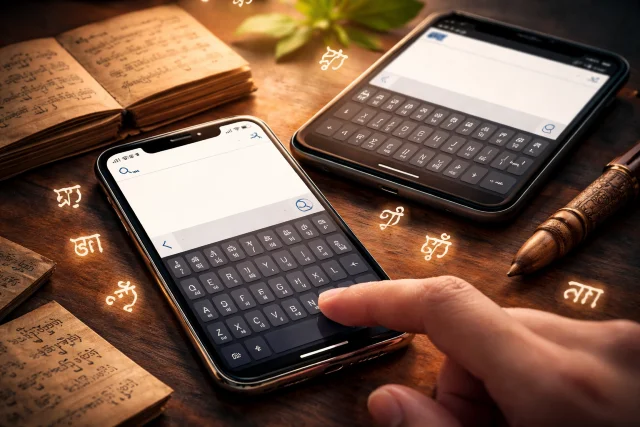
If you have ever tried writing Sundanese characters on your phone and ended up with empty boxes, weird spacing, or letters that jump around, you are not alone. Typing Aksara Sunda is totally possible on modern smartphones, but it works best when three things line up: the right keyboard, proper Unicode support, and a font that can actually render the characters.
- Why it sometimes shows boxes or messy letters
- What “Keyboard Aksara Sunda” really means on a phone
- Quick comparison of the best options on Android and iPhone
- How to type Sundanese script on Android
- How to type Sundanese script on iPhone (iOS)
- A note on standards: why keyboard layout matters
- Practical typing tips for cleaner Aksara Sunda results
- Troubleshooting: when Keyboard Aksara Sunda “doesn’t work”
- Real-world scenarios: where people use Keyboard Aksara Sunda
- FAQ: Keyboard Aksara Sunda on Android and iPhone
- Conclusion
This guide is built for everyday users who want Keyboard Aksara Sunda working smoothly on Android and iPhone. You will learn which keyboard apps to use, how to enable them, how to switch layouts quickly, and what to do when the script looks broken.
Sundanese script is standardized in Unicode, meaning it has an official digital encoding that devices and apps can support consistently. The Sundanese block covers the range U+1B80 to U+1BBF in the Unicode charts. That “Unicode part” matters because it is the difference between text that behaves like real text (searchable, copyable, consistent) and text that behaves like an image.
By the end, you will have Keyboard Aksara Sunda installed, enabled, and ready for messaging, notes, captions, and everyday writing.
Why it sometimes shows boxes or messy letters
If you typed Sundanese before and got squares, missing marks, or broken positioning, it is usually one of these issues:
- Font support is missing
Your device can store the characters but cannot display them nicely without a compatible font. - Older Android versions struggle
Some older Android versions do not fully support Sundanese script rendering. Even some app listings warn that Android 5.1 and below may not officially support Sundanese script properly without additional font help. - The app you are using is limited
A few apps display complex scripts better than others. Messaging apps are usually fine, but some older note apps or custom text fields can be hit-or-miss.
The good news is that on newer Android and iPhone devices, you can get a very clean setup with the right tools.
What “Keyboard Aksara Sunda” really means on a phone
When people say Keyboard Aksara Sunda, they usually mean one of these:
- A keyboard layout that outputs real Sundanese Unicode characters (not decorative symbols)
- A keyboard app that includes a Sundanese layout
- A typing method that follows common Sundanese writing rules (including vowel marks and diacritics)
The best experience is when the keyboard outputs standard Unicode and your phone can display it correctly. Keyman’s “Sunda Baku” keyboard, for example, is explicitly designed to type official Sundanese script in Unicode.
Quick comparison of the best options on Android and iPhone
Here is a practical overview before we jump into steps.
| Option | Works on Android | Works on iPhone | Best for | Notes |
|---|---|---|---|---|
| Keyman + Sunda Baku | Yes | Yes | Serious Aksara Sunda typing | Unicode-based keyboard with documentation. |
| Gboard (as a keyboard platform) | Yes | Yes | Multilingual typing | Great keyboard app, but Sundanese layout availability can vary. Use it mainly as a general keyboard. |
| Dedicated “Keyboard Aksara Sunda” apps | Yes | Sometimes | Quick install experiments | Some may require font support or have version limits. |
If you want the most reliable path for Keyboard Aksara Sunda on both platforms, Keyman is the most consistent “works across devices” approach.
How to type Sundanese script on Android
Android gives you a few different ways to get Keyboard Aksara Sunda running. The cleanest method is installing a keyboard that already includes Sundanese Unicode support, then enabling it in system settings.
Method 1: Install Keyman and add the Sunda Baku keyboard
Keyman is widely used for language keyboards, and the Sunda Baku keyboard is built specifically for Sundanese script in Unicode.
Step 1: Install Keyman and Sunda Baku
- Install Keyman on Android.
- Install the Sunda Baku keyboard package through Keyman’s listing.
Step 2: Enable Keyman as your keyboard
- Open Android Settings
- Go to System (or “General management” on some phones)
- Open Keyboard or Languages & input
- Choose On-screen keyboard (or Virtual keyboard)
- Enable Keyman and set it as default if you want
Step 3: Switch between keyboards quickly
Once enabled, you can usually switch keyboards using:
- The keyboard switch button on your navigation bar (if available), or
- The globe/keyboard icon on the keyboard itself, depending on your device
Now you can type Aksara Sunda as real text that can be copied, pasted, and searched.
Method 2: Use Gboard and add languages (when available)
Gboard is excellent if you switch languages often. Google’s own help docs show the standard method to add a language: open Gboard settings, go to Languages, and add a keyboard layout.
To set up:
- Install or open Gboard
- Go to Gboard Settings
- Tap Languages
- Tap Add keyboard
- Choose the language and layout you need
- Tap Done
If your exact Sundanese layout is not listed on your device, use Keyman for the dedicated Keyboard Aksara Sunda experience, and keep Gboard as your everyday multilingual keyboard.
Method 3: Installing other Sundanese keyboard layouts and files
Some Sundanese communities share guides for installing Sundanese keyboard layouts using Keyman and local files. For example, the SundaDigi guide describes adding a keyboard in Keyman and installing from a local file.
If you go this route, keep one thing in mind: the more “custom” the setup becomes, the more your experience will depend on font rendering, Android version, and how the keyboard layout was built.
How to type Sundanese script on iPhone (iOS)
On iPhone, Apple allows third-party keyboards, but you must explicitly add them in settings. Apple’s official guide shows where to add and manage keyboards in iOS.
The most stable cross-platform solution for Keyboard Aksara Sunda is again Keyman.
Method 1: Keyman on iPhone with Sunda Baku
Step 1: Install Keyman
- Download and install Keyman for iPhone.
- Then install the Sunda Baku keyboard package.
Step 2: Add Keyman in iPhone settings
- Open Settings
- Go to General
- Tap Keyboard
- Tap Keyboards
- Tap Add New Keyboard
- Choose Keyman
Step 3: Allow full access (only if you want)
Some third-party keyboards ask for “Full Access.” You do not always need it for basic typing, but specific features may require it. Follow the on-screen explanation inside iOS and the keyboard app itself.
Step 4: Switch keyboards while typing
When typing in any app:
- Tap and hold the globe icon, then select Keyman (or swipe between keyboards depending on your setup)
Method 2: Gboard on iPhone
If you already use Gboard, Google’s iOS setup guide explains how to install it and manage languages through settings. The overall process is similar: install Gboard, then add it as a keyboard in iOS settings.
Gboard is great for everyday typing, but for a dedicated Keyboard Aksara Sunda experience, you will usually rely on Keyman’s Sunda Baku.
A note on standards: why keyboard layout matters
Aksara Sunda is not just “a fancy font.” It has official encoding and, in Indonesia, there has also been work toward standardization of Nusantara script support. Indonesia’s national standards body (BSN) announced standards including SNI 9048:2021 for Nusantara script keyboard layouts.
You do not have to memorize standards to type, but knowing they exist helps explain why some keyboard layouts feel more consistent than others. A Unicode-based, standards-aware layout usually gives you fewer surprises.
Practical typing tips for cleaner Aksara Sunda results
Once Keyboard Aksara Sunda is enabled, your next challenge is comfort and consistency. Here are habits that make typing smoother fast.
1) Use Unicode output whenever possible
If the keyboard outputs real Unicode characters, your text will:
- Copy and paste correctly between apps
- Work in search
- Survive social media captions better
- Display more consistently across devices
2) Expect diacritics to “attach” and sometimes reposition
Sundanese script uses marks that combine with base letters. In many scripts like this, the final position of marks depends on the font and rendering engine, not only the keyboard. That is why the same text might look slightly different in different apps.
3) Test your text in 2 to 3 places
Before you post a long caption, test a short sample in:
- Notes app
- WhatsApp or your messaging app
- Instagram caption field (or whatever platform you use)
If it looks good in all three, you are usually safe.
4) Save your most used phrases
If you frequently write greetings, short poems, or classroom content, keep a mini library:
- A note titled “Aksara Sunda phrases”
- Or a clipboard manager (if you already use one)
It turns Keyboard Aksara Sunda from “cool but slow” into “fast and usable.”
Troubleshooting: when Keyboard Aksara Sunda “doesn’t work”
Let’s fix the most common problems quickly.
Problem 1: I see squares or question marks instead of letters
Try this checklist:
- Confirm you are using a Unicode-based keyboard layout (Keyman Sunda Baku is Unicode)
- Update your phone OS and the keyboard app
- Try a different app to view the text (some apps render complex scripts better)
- If your Android version is very old, rendering support may be limited and may require font support, as some Sundanese keyboard app notes mention for Android 5.1 and below
Problem 2: The vowel marks or signs look misplaced
This is usually font or rendering behavior:
- Test the same text in another app
- If it looks correct elsewhere, the problem is the app’s text engine
- If it looks wrong everywhere, update the OS and keyboard apps first
Problem 3: I cannot find Keyman in my keyboard list
On Android:
- Check Settings > Keyboard > On-screen keyboard and confirm Keyman is enabled
On iPhone:
- Go to Settings > General > Keyboard > Keyboards and confirm it was added
Problem 4: Switching keyboards is annoying
Small fixes that help:
- Place your Aksara Sunda keyboard next to your main keyboard in the keyboard order
- Learn the fastest switch method on your device (globe icon, keyboard icon, or long-press)
Real-world scenarios: where people use Keyboard Aksara Sunda
To make this feel less “technical guide” and more like real life, here are common ways people use Keyboard Aksara Sunda once it is set up.
For students and teachers
- Writing examples in class notes
- Creating worksheets or short reading materials
- Posting learning prompts in group chats
For creators and communities
- Instagram captions that celebrate Sundanese identity
- Community announcements with bilingual text
- Short storytelling posts using Aksara Sunda for style and authenticity
For daily use
- Contact names (with Aksara Sunda + Latin)
- Personal journals
- Greetings to family or friends
If you are building a habit, start small: one sentence per day. After a week, typing becomes surprisingly natural.
FAQ: Keyboard Aksara Sunda on Android and iPhone
Can I type Aksara Sunda directly in WhatsApp and Instagram?
Yes, if your keyboard outputs Unicode characters and your phone can render them. Most major apps handle Unicode text well, but appearance can vary depending on fonts and rendering.
Do I need internet to type with Keyboard Aksara Sunda?
After installation, basic typing usually works offline. Some keyboards offer optional online features, but the script typing itself does not require internet.
Is Aksara Sunda officially supported in Unicode?
Yes. The Unicode Standard includes the Sundanese block (U+1B80 to U+1BBF).
What is the easiest setup for beginners?
For most people, installing Keyman and the Sunda Baku layout is the most straightforward path because it is designed specifically for Sundanese script typing in Unicode.
Why does my friend see my text differently?
Different devices and apps may use different fonts and shaping engines. So your characters are the same, but the visual style and positioning may differ slightly.
Conclusion
Getting Keyboard Aksara Sunda working on Android and iPhone is mostly about choosing a Unicode-based keyboard, enabling it correctly, and making sure your device can display the script cleanly. Once it is set up, Keyboard Aksara Sunda becomes a practical daily tool, not just a novelty. You can write messages, captions, and notes in real Sundanese script, keep your text searchable and copyable, and share it across apps with far fewer formatting surprises.
If you care about long-term readability, the Unicode approach is worth it. Unicode charts for Sundanese show a defined character range, and tools like Keyman’s Sunda Baku layout are built around that foundation. In other words, you are not just typing pretty symbols. You are typing standardized digital text that can live anywhere.
In the broader picture, efforts like Indonesia’s keyboard-layout standard for Nusantara scripts also highlight how local scripts are being supported more seriously in modern technology. And once you have Keyboard Aksara Sunda ready, you can actually use it in the places that matter: education, community, and daily life.
To learn more about the history and structure of the Sundanese script, it helps to explore how the characters evolved and how modern digital support is built around them.