


If you have ever stood beside a printer waiting for a big document run to finish, you already know how quickly a simple job can turn messy. Ten copies of a twenty page report sounds easy until the pages come out in stacks that still need to be sorted by hand. That is exactly where Collate Printing becomes useful. If you have ever asked, What Does Collate Mean When Printing, the short answer is simple: it tells the printer to output complete sets in the right page order instead of grouping identical pages together. Canon and PaperCut both describe collated printing as printing each copy in full page sequence, which is why it is such a practical setting for multi page jobs.
- What Does Collate Mean When Printing?
- Why Collate Printing Matters More as Print Jobs Get Larger
- The Biggest Time Saving Benefit of Collate Printing
- Fewer Human Errors, Fewer Awkward Moments
- Collated vs Uncollated: Which One Should You Actually Use?
- How Collate Printing Makes Office Workflows Smoother
- Real World Scenarios Where Collate Printing Helps
- Collate Printing and Duplex Printing Work Well Together
- Common Reasons Collate Printing Does Not Work Properly
- Simple Tips to Make Large Print Jobs Easier
- Is Collate Printing Only for Offices?
- Final Thoughts
For home users, this may seem like a small feature. For offices, schools, law firms, training centers, and event teams, it is a time saver hiding in plain sight. Large print runs often involve reports, handouts, contracts, meeting packs, manuals, and presentations. When those files need to be distributed quickly, printing in the wrong order creates friction right away. Collated output removes that extra sorting step and makes the whole workflow feel more controlled. Xerox even notes that collated output is the most common setting for copy jobs, which says a lot about how often people need ordered sets rather than loose page groups.
The good news is that collate printing is not complicated. The better news is that once you understand how and when to use it, large print jobs become much easier to manage.
What Does Collate Mean When Printing?
Let’s make this practical.
When you print a five page document three times, you have two basic output options:
Collated printing
- Copy 1: 1, 2, 3, 4, 5
- Copy 2: 1, 2, 3, 4, 5
- Copy 3: 1, 2, 3, 4, 5
Uncollated printing
- Page 1, 1, 1
- Page 2, 2, 2
- Page 3, 3, 3
- Page 4, 4, 4
- Page 5, 5, 5
That difference is the whole game.
Canon’s support documentation explains it very plainly: with collate turned on, all pages of a single copy are printed together; with it turned off, pages with the same page number are grouped together. PaperCut describes the same behavior in general print settings.
For a one page flyer, it does not matter much. For a forty page employee handbook, it matters a lot.
Why Collate Printing Matters More as Print Jobs Get Larger
The larger the print job, the more valuable correct page order becomes.
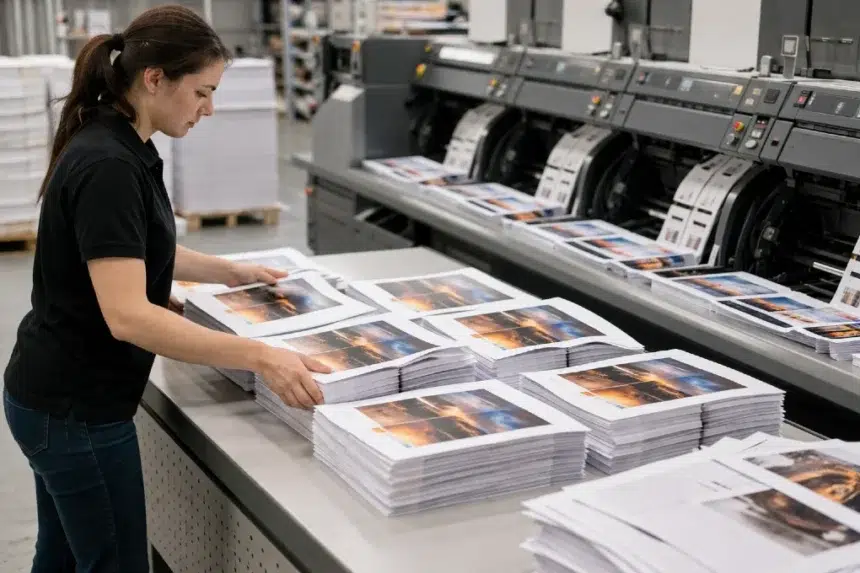
A three page document printed twice is easy to sort manually. A thirty page document printed twenty times is a different story. That is 600 printed pages. If those pages come out uncollated, someone has to gather each page stack and rebuild twenty full sets by hand. That adds labor, increases the chance of mistakes, and slows down distribution.
This is why Collate Printing is not just a convenience feature. It is a workflow feature.
In real settings, it helps with:
- Board meeting packets
- Employee onboarding folders
- Training manuals
- Classroom handouts
- Legal drafts and case files
- Sales presentation packets
- Conference agendas and schedules
When every set must be complete, ordered, and ready to hand off, collated printing takes pressure off the person managing the job.
The Biggest Time Saving Benefit of Collate Printing
The most obvious advantage is time.
Manual sorting sounds harmless until you have to do it under pressure. Imagine preparing 25 copies of a 16 page proposal minutes before a client meeting. If your printer produces uncollated stacks, you are not done when the printer stops. You still have to sort, stack, and double check every set. With collate enabled, the printer does that organization as part of the job.
That changes the pace of the task.
Instead of:
- printing
- sorting
- checking order
- restacking
- distributing
You are often left with:
- printing
- picking up complete sets
- distributing
That shorter chain reduces interruptions and makes large print runs less frustrating.
Fewer Human Errors, Fewer Awkward Moments
Time is important, but accuracy may matter even more.
Anyone who has assembled document sets manually knows how easy it is to make mistakes. A page gets skipped. A duplicate ends up in the middle. One packet is missing the final page. Another has page 7 twice. These errors are easy to miss until the document is already in someone else’s hands.
That is where collated output helps beyond simple convenience. It reduces the number of manual touchpoints. And the fewer times humans have to reshuffle paper, the lower the chance of mixing pages.
This matters most when documents are:
- client facing
- compliance related
- instructional
- time sensitive
- reviewed in meetings
- legally important
A misordered school handout is annoying. A misordered contract or medical intake packet can create bigger problems. Collated printing lowers that risk by making page order part of the print job itself. Canon specifically frames collated output as useful for handouts and presentations, which fits real world use perfectly.
Collated vs Uncollated: Which One Should You Actually Use?
This is where many people get confused. They assume collated is always better. It usually is for multi page sets, but not in every situation.
Use collated printing when:
- You need complete sets for multiple readers
- You are printing reports, contracts, manuals, or booklets
- You want each copy ready to staple or bind
- You are preparing meeting packets or classroom materials
- You want to avoid manual sorting
Use uncollated printing when:
- You need to separate pages for different production steps
- You are printing inserts or divider sheets
- Someone else will assemble documents later
- You want grouped pages for batch finishing
- You are printing single page materials in bulk
So the better question is not whether collated is good or bad. The better question is whether you need finished sets or grouped pages.
If you need finished sets, collate is usually the right choice.
How Collate Printing Makes Office Workflows Smoother
In busy offices, printing problems rarely look dramatic. They show up as little delays that pile up.
Someone prints a training packet and spends fifteen extra minutes sorting it. An admin assistant rechecks every page before a meeting. A receptionist notices one copy is incomplete and has to rerun the whole job. These are small disruptions, but they cost time and energy.
Collate printing helps smooth these rough edges because it supports a more predictable document workflow. Xerox documentation also shows that many devices allow collation to be set at the device or default level, which matters in shared office environments where repeat tasks are common.
In practice, that means:
- staff spend less time handling paper manually
- meetings start with properly ordered materials
- shared printers produce more usable output
- reprints happen less often
- document prep becomes easier to delegate
This is especially valuable in organizations that still rely on printed materials every day. Schools, law offices, healthcare practices, local government departments, and small businesses all fit that picture.
Real World Scenarios Where Collate Printing Helps
1. Training sessions
A trainer needs 40 copies of a 22 page workbook. With collate enabled, each workbook comes out in proper order and can be handed out immediately. Without it, the trainer or office assistant spends valuable setup time sorting stacks.
2. Legal and professional documents
A legal assistant printing multiple copies of a contract package cannot afford missing or misplaced pages. Collate helps keep every copy complete, which supports accuracy and professionalism.
3. School and university handouts
Teachers often print chapter notes, worksheets, and revision packs. When every student needs a full set, collated printing saves time before class starts.
4. Meeting packets
Business meetings often require agendas, reports, and appendices. If these come out collated, the material is easier to distribute and easier for attendees to follow.
5. Event materials
Conference schedules, speaker notes, registration packets, and volunteer instructions all benefit from ordered output. When an event is moving fast, nobody wants to build paper sets by hand.
Collate Printing and Duplex Printing Work Well Together
Collation becomes even more useful when combined with duplex printing, which prints on both sides of the paper.
Why? Because duplex jobs are often longer, more presentation ready, and meant to be handled as finished documents. A collated duplex output is usually much closer to a final handout, booklet, or internal packet than a loose stack of printed sheets.
Canon support notes that collated copying can also work with two sided settings on compatible devices. Xerox and Canon documentation both show collation as part of broader output controls, which is exactly why it becomes more valuable in larger, more polished print jobs.
If you regularly print reports for review, onboarding documents, or presentation packs, using duplex and collate together often gives you the cleanest result.
Common Reasons Collate Printing Does Not Work Properly
Sometimes users turn on collate and still get confusing results. When that happens, the issue is usually one of a few things:
Driver or app settings conflict
Canon notes that if both the application and printer driver offer the same function, results may vary based on where the setting is applied. In some cases, using the app setting works better; in others, the printer driver setting takes priority.
Device defaults override expectations
Xerox documentation shows that printers may have default copy or print behaviors. If a shared device has collation configured a certain way, your job may follow that default unless adjusted.
Older system issues
Microsoft has documented cases where collate behavior did not work correctly in certain Windows environments and required fixes. That is not a common modern issue for most users, but it does show that print behavior can depend on software layers, not just the printer itself.
Very large or complex jobs
Some Xerox support articles suggest reducing the number of pages in problematic jobs when collation misbehaves, which points to the fact that job size and device handling can affect output.
If collation does not work as expected, check the app print dialog, printer driver settings, and device output settings together rather than assuming one checkbox controls everything.
Simple Tips to Make Large Print Jobs Easier
If you regularly handle big print runs, these habits can save a lot of trouble:
Preview the job before printing
Check page count, orientation, copies, duplex settings, and collation before clicking print.
Run one test set first
Before printing 50 packets, print one copy and inspect it. This catches page order issues early.
Use clear file names
When multiple versions exist, a simple naming system reduces the chance of printing the wrong document.
Match the output to the task
Collated for finished sets. Uncollated for grouped production work.
Watch paper and finishing options
If you plan to staple, bind, or hole punch, make sure the pages are ordered the way your finishing step requires.
Standardize common jobs
In offices with shared printers, saved presets can reduce errors for recurring document types.
These are small habits, but together they make Collate Printing more reliable and much more useful.
Is Collate Printing Only for Offices?
Not at all.
Home users can benefit from it too, especially when printing:
- study notes
- school projects
- recipe collections
- travel documents
- household records
- church or community handouts
- family event packets
The feature is simple, but the benefit is universal. Any time more than one person needs a complete multi page document, collation helps.
Final Thoughts
Large print jobs do not become difficult because printers are complicated. They become difficult because paper has to stay organized from the first page to the last. That is why Collate Printing matters. It turns a pile of pages into usable sets, cuts down on manual sorting, lowers the risk of missing pages, and helps busy people move from printing to distribution much faster.
So, if you have ever wondered, What Does Collate Mean When Printing, the answer is more practical than technical. It means your printer can do part of the organizing for you. And when the job is big, that small setting makes a very real difference.
In the end, collated output is not about fancy printer knowledge. It is about efficiency, accuracy, and less frustration. For anyone printing reports, packets, manuals, or handouts, it is one of the easiest ways to make document handling smoother. If you want a broader background on the idea behind ordered sets, the phrase document collation gives useful context in publishing and information arrangement.